Applock:Security & Privacy
- 4.2
- Rating
- 100.00K
- Installs
- Free
- Price

 Analysis by App-foxy
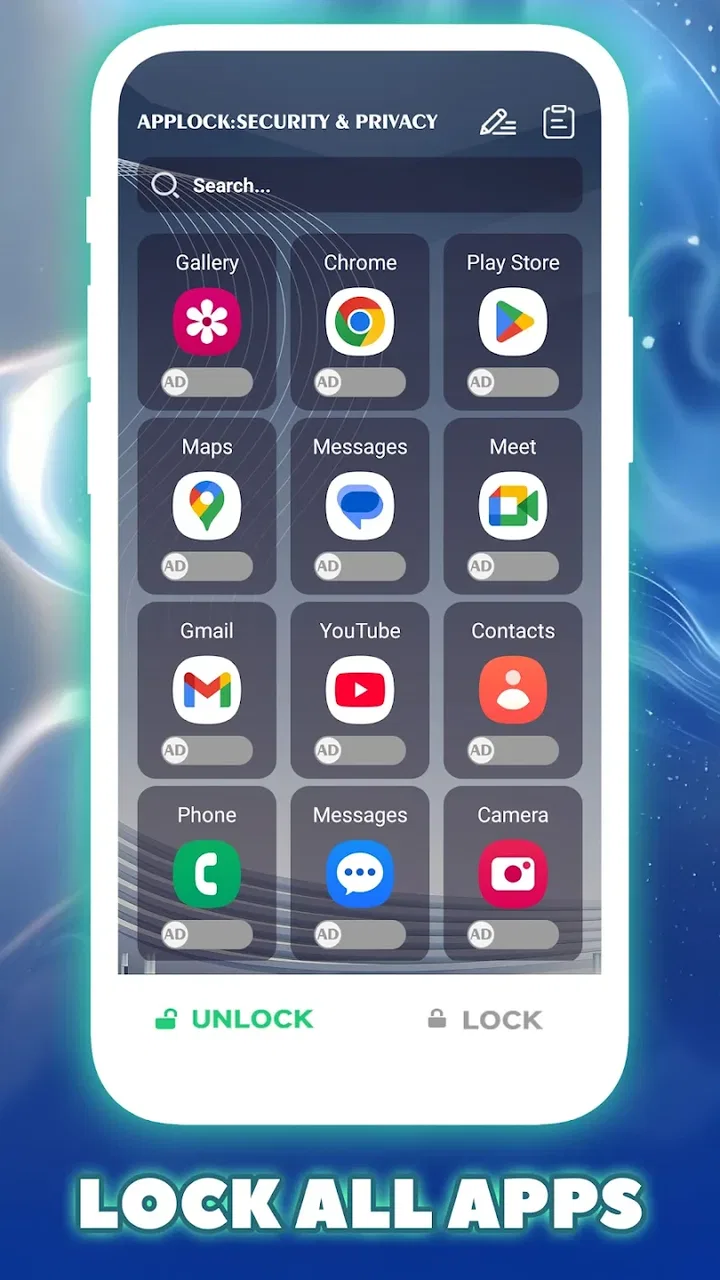
I approached Applock:Security & Privacy as the kind of utility people install when a phone contains more personal information than they want to leave open. Its purpose is easy to understand: add a lock around selected apps so another person holding the device cannot casually browse through them. That makes it relevant for messaging, photo, finance, work, and social apps, especially on a shared phone or when children sometimes borrow the device.
What I like about this app is that it focuses on one practical task rather than trying to become a complete phone-management suite. It is a free Tools app from RUI CARD LIMITED, rated for Everyone, and its simple “Applock” positioning makes the intended use immediately clear. The current release is version 1.0, so I would approach it as a straightforward privacy layer rather than as a mature security platform with a long list of extras.
In everyday use, the value is less about locking everything and more about choosing the right few apps. A lock on a private chat application can be useful when a friend asks to make a call. Protecting a gallery can prevent an awkward moment when someone wants to see one picture but starts swiping. On a family tablet or a phone used during travel, selective protection is usually more comfortable than making every action feel restricted.
You May Also Like

 Blood Strike: 2.5 Anniversary
Blood Strike’s Loadouts Turn Every Drop Into a Tactical Gamble
A close look at Blood Strike’s custom loadouts: how fast access to signature weapons reshapes its battle royale rhythm, rewards preparation, and narrows the gap between fights.

 Pandora - Music & Podcasts
Pandora’s Music Is Easy to Start, but Harder to Recover
Pandora’s strength is its low-effort path from a seed to a station. Its weak spot is how much confidence it asks you to place in connection, setup, and quiet recovery.

 8 Ball Pool
 Is Built on Rivalries, Rematches, and Routine
A close look at the rivalries, rematches, shared routines, and unanswered safety questions that turn a quick pool match into a persistent mobile community.

 Samsung Music
’s Quiet Strength Is Playing What You Already Own
Its reach comes less from spectacle than from dependable access to a personal library. That simplicity is both the app’s strongest retention engine and its ceiling.

 AccuWeather: Weather Radar
AccuWeather Review: A Quick, Clear Forecast for Everyday Decisions
For everyday plans, the best forecast is the one you can understand quickly. AccuWeather makes rain timing, radar, and local conditions easy to act on, with a few trade-offs.

 Hill Climb Racing
Why Hill Climb Racing Still Turns Crashes Into One More Run
A tiny car, a bumpy hill and one more upgrade: Hill Climb Racing keeps resurfacing because its simple chaos makes every near-miss feel personal.
More From Our News Desk
View All News


Where the experience can become confusing
The first point where many people get stuck is expecting an app lock to behave exactly like the phone’s own screen lock. It does not replace device security. It works as an additional step around chosen apps, which means the phone itself still needs to be protected with the operating system’s normal security tools. I would not treat this app as a substitute for a strong device passcode, biometric protection, or sensible account security.
Another common source of frustration is locking too many apps at once. That sounds safer, but it can make ordinary tasks unnecessarily slow. If the phone asks for an unlock every time you open settings, messaging, photos, and other frequently used tools, the extra protection may become irritating enough that you stop using it carefully. I found the better approach is to begin with genuinely private apps and expand only when the daily routine still feels natural.
The app is also not a magic barrier against every form of access. Someone who already knows the phone’s main unlock method may still be able to change system settings or remove obstacles outside the app-lock workflow. For that reason, I see it as protection against casual browsing and accidental exposure, not as a complete answer to a determined person with physical access to the device.
That distinction matters when deciding whether it is suitable for you. If your main concern is a roommate opening a private conversation while borrowing your unlocked phone, this kind of tool can be useful. If you need enterprise-grade controls, detailed activity auditing, remote administration, or protection against a technically skilled attacker, I would look for a solution designed specifically for those needs instead.
Start with a small, meaningful list
My practical recommendation is to protect the apps that would cause the most trouble if opened unexpectedly, rather than selecting every icon that looks personal. A private gallery, a messaging app, a banking tool, or a work application may deserve priority. Games and video apps usually do not need the same treatment unless they contain purchases, private profiles, or information you specifically want to keep away from other users.
This selective approach has a less obvious advantage: it makes troubleshooting easier. If something feels wrong after setup, you can identify the problem app quickly instead of trying to remember which of a long list is causing the interruption. It also helps you notice whether the protection is solving a real privacy problem or merely adding friction to routine phone use.
Setup checks that prevent avoidable problems
Before relying on the lock, I would first open the app calmly and decide what the protection is meant to accomplish. Think about the people who may handle the phone, the apps they might open, and the situations in which you normally lend it out. This simple planning step is more useful than immediately locking everything, because it turns the app from a vague privacy button into a specific part of your routine.
Choose an unlock method you can remember without writing it beside the phone. A security tool becomes inconvenient if you repeatedly forget its own credential, and repeated failed attempts can make a short task feel much longer. I also recommend testing the chosen method immediately on one low-risk app before applying it to something important. That gives you a chance to understand the flow while you still have easy access to the rest of the device.
After selecting an app, close it completely and reopen it as a normal user would. Do not judge the setup only from the app’s configuration screen. The real test is whether the lock appears at the moment you expect it to, whether the unlock process is understandable, and whether returning to the protected app behaves consistently. This small check can reveal confusion before you depend on the feature in a sensitive situation.
It is worth keeping the phone’s own security settings in mind during setup. System updates, battery management, background restrictions, or changes to device permissions can affect how utility apps behave, although the exact options vary by phone manufacturer. If the lock seems unreliable, I would review the app’s available system access and the phone’s battery or background-management settings rather than repeatedly changing the protected-app list.
Do not rush through any Android confirmation screen that appears during configuration. Read what the phone is asking you to allow and consider whether it matches the app’s purpose. For an app whose job is to guard access to other apps, certain system-level capabilities may be relevant, but you should still understand the request before approving it. If a prompt seems unrelated or unclear, pause and check the wording instead of accepting it automatically.
One useful habit is to test after a restart. A lock that works immediately after installation but not after the phone reboots is not ready for dependable use. Restart the device, unlock the phone normally, and try the protected app again. This is a realistic check because phones are restarted after updates, battery problems, maintenance, or accidental shutdowns. It also separates a one-time successful setup from a workflow you can trust.
I would also avoid changing several variables at once. If you alter the protected list, the unlock method, and system battery settings in one session, you will not know which change helped or caused trouble. Make one adjustment, test it, and keep the configuration that feels stable. That method is slower for a few minutes but much faster than repeatedly rebuilding the entire setup.
A realistic everyday scenario
Imagine that a family member asks to use your phone to check a travel message. You hand over the unlocked device, but your private conversations and photos are not meant to be part of that interaction. With a carefully chosen app list, the person can use the phone for the intended task while the protected apps require an additional unlock. The important detail is preparation: you should set this up before the handoff, not while someone is waiting.
In that situation, I would unlock only what is necessary and take the phone back as soon as the task is finished. The app adds a useful boundary, but it does not remove the need for ordinary judgment. If you lend out the phone frequently, consider whether a separate guest profile, restricted user mode, or the operating system’s built-in app and screen controls would better match your needs. Those alternatives can be more suitable when another person needs broad access for a longer period.
Recovering the workflow when something goes wrong
If a protected app suddenly refuses to open, I would begin with the simplest checks. Confirm that you are using the intended unlock method, then return to the app-lock tool and review whether the target app is still selected. Next, close the relevant apps, reopen the lock utility, and try again. These steps sound basic, but they often distinguish a forgotten configuration change from a deeper phone problem.
If the issue appeared after a phone restart or system update, repeat the test after the device has fully settled. Give the phone time to finish its normal startup work, then open the protection tool and test one locked app. Avoid immediately uninstalling or clearing everything, because that can make recovery harder and may remove the configuration you are trying to inspect.
When the lock screen appears but the protected app does not continue after a successful unlock, I would check whether the problem occurs with one app or with every protected app. One failing app may point to that application’s own update, crash, or compatibility issue. If all protected apps behave the same way, the broader app-lock setup or the phone’s system settings become more likely suspects.
There is an important recovery principle here: do not experiment first on your most sensitive app. Use a less important protected app as a test case, confirm that the workflow is stable, and then review the rest. That reduces the chance of locking yourself out of something you urgently need. Keep your device’s normal screen-unlock method available, since the app lock is an extra layer and not the only route to controlling the phone.
If you forget the app-lock credential, resist the temptation to keep guessing indefinitely. Repeated attempts rarely solve a memory problem and can increase stress when you need access quickly. Look for the app’s own recovery or reset path if one is presented, and consider the consequences before removing app data or uninstalling anything. A reset may affect the protection setup, so it should be treated as a last resort rather than a casual troubleshooting step.
For a phone used by someone else, recovery also involves communication. If another family member configured the lock, make sure the person who needs access understands which method is expected. A surprising number of “broken” security tools are simply configured with a credential known by one person but not another. Clear ownership of the setup makes the app more practical in households where devices are shared.
When the app is not the cause
Sometimes the lock behaves correctly and the problem is elsewhere. A protected app may crash before the lock process finishes, fail to load because of a network issue, or become unstable after its own update. Test the same application from its normal icon after temporarily reviewing the protection setup, but change only what you can safely restore. If the app fails independently, blaming the lock tool will send troubleshooting in the wrong direction.
Phone performance can also create misleading symptoms. Low storage, heavy background activity, overheating, or a pending system update may make launches slow and cause people to assume the extra security step is responsible. I would check whether other apps are also slow, whether the device has recently restarted unexpectedly, and whether the issue disappears after ordinary maintenance. The lock cannot fix a phone-wide stability problem.
Manufacturer-specific behavior is another variable. Android phones do not all manage background activity in the same way, and some interfaces are more aggressive about stopping utilities that need to remain available. If the protection works intermittently, inspect the phone’s own battery and background controls. Do not blindly disable every restriction; make the smallest change that matches the app’s purpose, then test again.
There is also a privacy trade-off that deserves attention. Adding an app-lock layer means placing trust in another tool on the device. That can be reasonable for casual privacy, but people with especially sensitive information should think about the overall security model: the phone’s screen lock, operating-system updates, account protection, app permissions, and physical access all matter. A single app cannot compensate for weak security everywhere else.
For children, I would not rely on this app alone. It may help keep selected apps private, but a child-friendly setup usually needs broader controls around screen time, purchases, content, and account access. For a partner or roommate, the tool is better understood as a personal boundary than as a way to monitor another person. Its usefulness comes from protecting your chosen apps, not from creating a complete shared-device management system.
Compared with the usual alternatives, this app’s appeal is its narrow focus and free entry point. Built-in phone security is essential and often more deeply integrated, while separate guest profiles or parental controls can offer a cleaner experience when another person needs wider access. A general privacy suite may provide more functions, but it can also be more complicated. I would choose this app when I want a simple extra barrier around a handful of apps, not when I need a full device policy.
My practical verdict after using it
Applock:Security & Privacy makes sense for people who want a focused, additional lock around selected Android apps. Its strongest quality is clarity: the idea is easy to understand, and a careful setup can protect private parts of a phone during ordinary handoffs. With over one hundred thousand installs and a 4.2 average from around one hundred sixty ratings, it has attracted meaningful early interest, although I would still keep expectations appropriate for a version 1.0 utility.
I would recommend it to someone who regularly lends out an unlocked phone, shares a device with family, or wants a simple separation between public and private apps. I would begin with a short list, test after restarting the phone, and keep the normal device lock enabled. Those habits do more for reliability than adding every possible app to the protected list.
I would skip it if you need advanced administration, detailed security reporting, guaranteed protection against a determined attacker, or a complete child-safety system. In those cases, the phone’s built-in controls or a more specialized solution may be a better fit. I would also avoid depending on it without testing the exact apps you care about, particularly after an operating-system or application update.
The price is easy to justify because the app is free, but “free” should not be confused with effortless. The best results come from a thoughtful list, a memorable unlock method, and a quick recovery plan. If you treat it as a practical privacy layer rather than a replacement for device security, it can earn a useful place on a personal phone.
My final view is cautiously positive. This is a focused Tools app from RUI CARD LIMITED that can solve a specific everyday problem without demanding a complicated security strategy. Its limitations are just as important as its benefit: it adds friction, depends on a healthy phone setup, and should not be mistaken for comprehensive protection. For selective app privacy and casual protection from unwanted browsing, I would give it a try; for anything more demanding, I would compare it carefully with the controls already built into the device.
FAQs for Applock:Security & Privacy
01What is Applock: Security & Privacy and how does it work?
Applock: Security & Privacy is a versatile app designed to protect your personal information, apps, and photos on your mobile device. It works by allowing you to lock specific apps with a password, pattern, or fingerprint, ensuring only authorized users can access them. This app also provides features like photo vaults and privacy alerts.
02Is Applock: Security & Privacy free to use, or are there any in-app purchases?
Applock: Security & Privacy offers a free version with essential features. However, for advanced features such as ad-free usage, enhanced security options, and customizable themes, there are in-app purchases available. These premium options allow users to tailor the app to better fit their security needs.
03How does Applock: Security & Privacy enhance my device's security?
The app enhances security by allowing users to lock individual apps, ensuring that sensitive information is protected even if the device is unlocked. With features like fingerprint authentication, photo vaults, and fake covers, it provides multiple layers of protection against unauthorized access and potential data breaches.
04Will using Applock: Security & Privacy affect my device’s performance?
Applock: Security & Privacy is optimized to run smoothly on most devices without significantly impacting performance. The app is designed to use minimal resources, ensuring that your device remains fast and responsive while providing robust security features to protect your data.
05Is Applock: Security & Privacy compatible with all Android and iOS devices?
Applock: Security & Privacy is compatible with most Android and iOS devices. However, some features may vary depending on the device's operating system version and hardware capabilities. It is recommended to check the app's requirements on the Google Play Store or Apple App Store to ensure compatibility with your device.
Pros
- Easy to use interface for quick setup.
- Wide range of apps supported for locking.
- Customizable lock methods available.
- Intruder selfie feature enhances security.
- Lightweight app with minimal battery use.
Cons
- Ads can be intrusive and frequent.
- Limited features in the free version.
- Occasional crashes reported by users.
- Some features require additional permissions.
- Can be bypassed on some devices.

Applock:Security & Privacy
Gallery